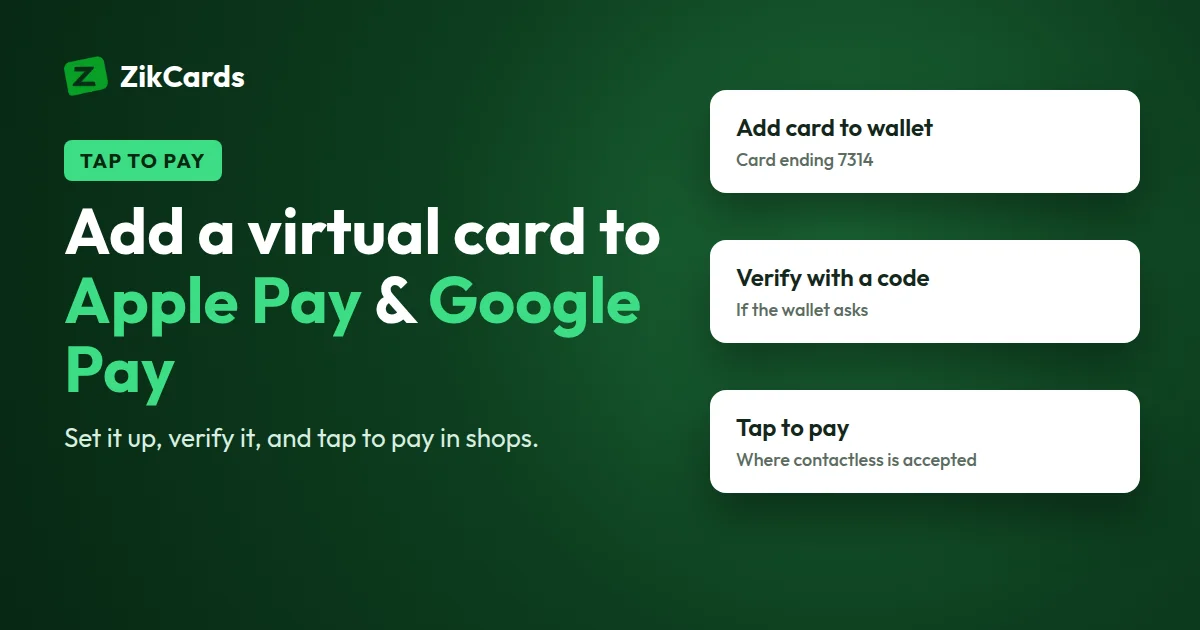
A virtual card has no plastic, so many people think it only works for online shopping. In fact, a virtual card can often go into the wallet on your phone and pay in shops with a tap. This guide explains how to add a virtual card to Apple Pay and Google Pay (Google Wallet), step by step, which billing address to enter, what to do when the wallet asks for a code, and how tap to pay with a virtual card works at the till.
Can a virtual card go into Apple Pay or Google Pay?
Yes, in many cases. A phone wallet does not need a plastic card. It needs a card number, an expiry date, a security code and the approval of the bank or institution that issues the card. The wallet stores a separate device number (a "token") on your phone, so the shop's terminal never receives your real card number.
Whether it works for a given virtual card depends on two things:
- The issuer must support the wallet. Some virtual card providers do not allow phone wallets at all. Check before you rely on it.
- The wallet must be available where you live. Apple Pay and Google Wallet are not offered in every country.
For ZikCards, a card can be added to Apple Pay or Google Pay, where Apple Pay or Google Wallet is available in your country. We have tested adding a ZikCards card and tapping to pay in a shop with Apple Pay and with Google Pay. Your own result can still depend on your phone, your country and the shop's terminal. See also our help answer: can I add my card to Apple Pay or Google Pay?
Before you start
A few minutes of preparation saves most failed attempts:
- Open the card in your ZikCards dashboard and reveal its number, expiry date and security code.
- Check the card is not frozen. A frozen card declines everything, and the wallet may check the card when you add it.
- Make sure there is some balance on it. Remember that $1.20 stays on each open card, so the card can spend its balance less $1.20.
- Copy the card's billing address. Each ZikCards card has its own billing address, shown on the card page with a copy button. This is the address the wallet needs, not your home address. Why the billing address matters.
How to add a virtual card to Apple Pay
On an iPhone, Apple Pay lives in the Wallet app. The exact labels can change between iOS versions, but the steps are usually these:
- Open the Wallet app and tap the + button.
- Choose the option to add a payment card. The exact label can differ, but your virtual card goes here too.
- When the camera opens to scan a card, choose to enter the card details manually. There is no plastic to scan.
- Type the name on the card, the card number, the expiry date and the security code, exactly as shown on your card page.
- When asked for an address, enter the card's billing address from the card page.
- Accept the terms. If the wallet asks you to verify the card, follow the steps (see the section on verification below).
How to add a virtual card to Google Pay (Google Wallet)
On Android, the app that holds your cards for tap to pay is called Google Wallet. Many people still call it Google Pay, and searches for a "Google Pay virtual card" or "Google virtual card" usually mean this. The steps:
- Open Google Wallet and tap Add to Wallet.
- Choose Payment card (the label may differ on your phone), then add a new card.
- Skip the camera scan and type the details by hand: card number, expiry date, security code and the name on the card.
- Enter the card's billing address from your card page, not your home address.
- Accept the issuer's terms and complete any verification the wallet asks for.
- If you are asked, set Google Wallet as your default payment app for contactless, and turn on NFC in your phone's settings.
When the wallet asks for a verification code
When you add a card, the wallet and the issuer sometimes want an extra check that you are the cardholder. The wallet may ask for a one-time code. That is normal and does not mean anything is wrong with the card.
- Follow the wallet's own instructions on the screen. Do not close the wallet while you wait.
- Enter the code only inside the wallet app on your own phone.
- ZikCards never asks for a code. Not by email, chat, Telegram or phone. Anyone who asks you to read a code out to them is trying to steal it.
For codes that appear when you pay online, see our guide to 3D Secure on a virtual card.
If the wallet cannot add the card
Most problems come from a small mismatch. Work through this list before you try again:
| What you see | Likely reason | What to do |
|---|---|---|
| "Could not add card" right away | A typo in the number, expiry or security code | Compare each field with the card page, digit by digit |
| Card refused after details are entered | Home address entered instead of the card's billing address | Remove the card and add it again with the address from the card page |
| Card refused, details are correct | The card is frozen | Unfreeze it in your dashboard, then try again |
| Wallet not offered, or no Add option | Apple Pay or Google Wallet is not available in your country or on your device | Check the wallet's own list of supported countries |
| Fails after several tries | Too many attempts in a row | Wait a while before trying again, then contact support if it still fails |
If it still fails, contact support with the exact message the wallet showed. A screenshot helps.
Tap to pay with a virtual card in shops
Once the card is in your wallet, paying is the same as with any card on your phone:
- Look for the contactless symbol on the shop's card terminal.
- On an iPhone, double-click the side button and confirm with Face ID, Touch ID or your passcode. On Android, unlock the phone.
- Hold the top of the phone near the terminal until you see a tick or hear a sound.
A few things to know before you rely on it:
- Not every terminal is the same. Contactless acceptance depends on the shop's terminal and its settings. Some older terminals do not take phone payments at all.
- Some places are blocked. ZikCards cards always decline in some merchant groups, including fuel pumps, transit and taxis. A tap at a petrol pump or a ticket gate will not work. See the full list.
- No cash machines. A ZikCards card has no PIN and no plastic, so it cannot be used at an ATM, with or without a wallet.
- The card can be Visa or Mastercard. You choose the brand each time you create a card. See Visa vs Mastercard virtual card.
Balance and fees when you pay with your phone
A wallet does not change how the card works. It is still the same ZikCards card, loaded from your balance:
- It spends only what is on it. The card can spend its balance less the $1.20 that stays on it while it is open. There is no credit and no bill. Top up the card before you go shopping.
- A declined tap costs money. The card issuer charges $0.40 for every declined payment, taken from the card.
- Shops outside the US. A purchase that settles outside the United States carries the issuer's cross-border fee. A shop in your own country, if you live outside the US, will usually settle outside the US, so allow for this fee when you plan your balance.
Every fee is listed on our pricing page. If a payment at a shop is declined and you are not sure why, our guide on why a card is declined covers the common reasons; most apply in shops too.
Keep the card safe in your wallet
- If you lose your phone, freeze the card. Freeze it from your ZikCards dashboard on another device. Freezing the card in ZikCards should stop wallet payments too, because the wallet still pays with the same card. You can unfreeze it once the phone is back.
- Frozen is not free. If someone keeps trying to pay with a frozen card, the issuer still charges the decline fee on each attempt. If the phone is gone for good, close the card. Closing is free and returns the full remaining balance to your wallet. Freeze or close?
New to virtual cards in general? Start with what is a virtual card.
Frequently asked questions
How do I add a virtual card to Apple Pay?
Open the Wallet app, tap +, choose the option to add a payment card, then choose to enter the details manually. Type the card number, expiry date, security code and name from your card page, and use the card's own billing address. Complete any verification the wallet asks for.
Can I use a virtual card with Google Pay?
Yes, if the card's issuer supports Google Wallet and Google Wallet is available in your country. A ZikCards card can be added to Google Wallet by hand and used to tap and pay in shops.
Does tap to pay work with a virtual card?
Yes, once the card is in Apple Pay or Google Wallet, you pay by holding your phone near a contactless terminal. Acceptance still depends on the terminal, so not every shop will take it.
Why does the wallet ask for a code when I add the card?
The wallet and the card issuer sometimes run an extra check to confirm you are the cardholder. This is normal. Enter the code only in the wallet app, and never share it with anyone. ZikCards never asks for it.
Which billing address do I enter in the wallet?
The billing address shown on your card page in ZikCards, not your home address. Each card has its own. A wrong address is a common reason a wallet refuses a card.
What happens if I freeze the card that is in my wallet?
Wallet payments should be declined too, since the wallet pays with the same card. Note that the issuer still charges the decline fee on attempts with a frozen card.
Want to pay in shops with a card you control from your phone? Create your ZikCards account. See every fee on our pricing page.
Visa, Mastercard, Apple Pay, iPhone, Face ID, Touch ID, Google Pay, Google Wallet and Android are trademarks of their respective owners. ZikCards is not affiliated with or endorsed by them.